Conoti User Guide
From creating a room to AI Noti and external AI (MCP) integration — everything Conoti can do, on one page.
1. Getting started
Create an announcement room
- Tap the + button → Create announcement room at the bottom of the app. Just pick a room name and password.
- You can create a room without signing in (one per device). Signing in unlocks running multiple rooms, recovery when you change devices, and subscription benefits.
- Owners: keep your recovery code safe — it restores owner rights even if you lose your device.
Inviting and joining
- Share the join code (for example MKZ-3440), or members can find the room by searching its name (the owner can turn discovery on and off).
- Members just install the app, enter the code and a nickname — no sign-up needed.
Roles
- Owner full room management · Manager announcement management · Writer writing announcements · Member read + comment. Change roles in the member list.
2. Sending announcements — immediate, scheduled, recurring
- Immediate: write → send. A push notification goes out to the whole room, and read receipts track who has seen it. Inline images and file attachments (image/PDF) supported.
- Scheduled: register in advance with a send time. It fires at the exact time in the scheduler's time zone.
- Recurring: daily / weekly (weekdays) / monthly (dates) + a time. Automate regular meeting and class reminders with one registration. A series end date can be set.
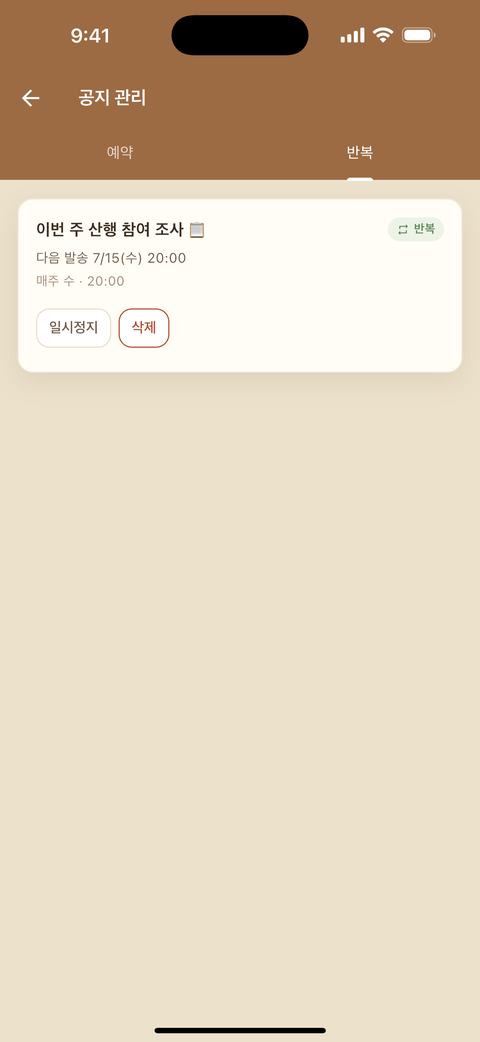
- Manage scheduled and recurring posts in the announcement management tab (owner/manager): list, edit, pause, delete.
- Notification strength (sound+vibration/silent), comments on/off, and pinning can be set per announcement.
3. AI assistant “Noti” (Pro)
Talk to the AI chat inside your room and Noti takes care of it:

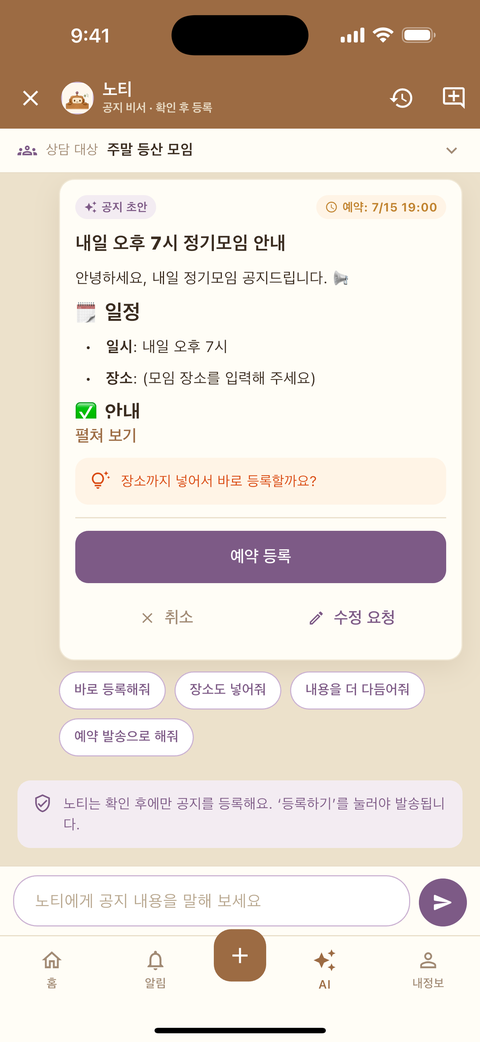
- Draft an announcement → review → register as immediate/scheduled/recurring in one flow.
- Summarize past announcements or analyze read status (“who hasn't read the last announcement?”) — all by conversation.
- Noti remembers the room's past announcements and writes drafts in context (information outside the room is isolated).
4. Personalized coaching rooms (Pro)
A management space for instructors, coaches, and trainers.
- Member groups: create groups by class, time slot, or level and announce per group.
- One-to-one personal notices: notices that go to a single member only (re-enrollment, payment, individual schedules) — shown only in that member's notification feed.
- Schedules and reminders: register each member's class schedule and reminders go out automatically on time.
- A dedicated instructor AI understands your member-management context (groups, schedules) and helps with it.
5. Going further — external AI integration (MCP)
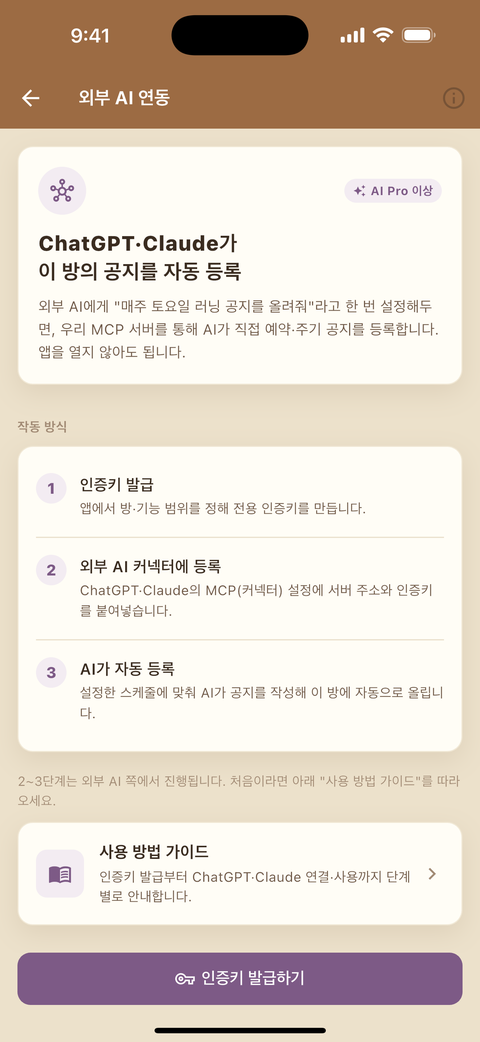
Conoti provides a standard MCP (Model Context Protocol) server (Pro). AI tools that support MCP — Claude Code/Desktop and others — can operate your announcement rooms directly: tell the AI what you want and the announcement is registered without opening the app.
How to connect — pick the one that matches your tool
First, create a key. In the app: Profile → External AI (MCP) → Issue key — choose the rooms and permissions (draft / schedule / recurring / resend). The key is shown only once, at the moment it is issued.
Tap ‘Copy setup prompt’ on the key screen and paste it into your AI chat. The AI registers itself and even confirms your room list.
⚠️ The key stays in that chat history — avoid shared accounts.
One line is enough.
claude mcp add --transport http conoti https://conoti.app/mcp --header "Authorization: Bearer ak_live_…"
Add it under mcpServers in your settings (.mcp.json has the same shape).
"conoti": {
  "type": "http",
  "url": "https://conoti.app/mcp",
  "headers": { "Authorization": "Bearer ak_live_…" }
}
Paste just the address into the connector dialog. Which of the two you use depends on the auth options that tool offers.
① If you can choose OAuth — paste the address below. A consent screen appears, and you enter your key there.
https://conoti.app/mcp/oauth
② If ‘No authentication’ is the only option — use the path-key address, which carries the key inside the URL.
https://conoti.app/mcp/k/ak_live_…
⚠️ The path-key address is itself a secret — never show it in a screen share or screenshot. Both addresses can be copied from the key screen in the app.
Once it is registered, ask your AI “show me my announcement rooms.” If the list comes back you are connected — and 21 tools are now available.
What the AI can do (21 tools)
| Category | Features |
|---|---|
| Read | My room list · room summary · dispatch status · scheduled/recurring lists · search past announcements |
| Write | Draft announcements · schedule · set up recurring · publish now · resend · attach files |
| Manage | Edit/cancel scheduled · edit/pause/delete recurring |
| Verify | See who has read · resend only to those who haven't |
Read status is visible only in rooms where the owner has turned on
public read rosters in the app, and the key needs a separate permission
(read_status) — it is member behavioral data, so it is off by default.
Just ask like this
As in the last example, combine it with other tools (Notion, calendar, spreadsheets) — bulk-register announcements from a schedule, auto-announce server maintenance, register a season's curriculum at once: automation in a single line of AI conversation.
Safety mechanisms
- Key permissions (scopes): each key limits which rooms and features it can reach. Rotate or revoke any time.
- Publish-now is double-locked: unlike scheduling, immediate publishing (publish_now) works only when both the app's tool switch and the key permission are on.
- Call history and undo: announcements registered by AI can be reviewed in the app's call history and reverted at once.
- Send times fire exactly in the time zone specified at registration.
6. Plans · Ink
Two plans are available now: Free and Pro. Pro is our one subscription, renews automatically every month, and its price is shown by the store for your country.
| Feature | Free | Pro |
|---|---|---|
| Price | No charge | Store price · renews monthly |
| Ads | Shown | None |
| Ink | Earn by watching ads (up to 10 a day) | 5,000 ink every month |
| Rooms | 3 (1 without signing in) | 50 |
| Participants per room | 10 | 1,000 |
| Scheduled and recurring announcements | Limited number | Unlimited |
| Attachments | 5 MB per file · 100 MB per room | 20 MB per file · 10 GB per room |
| Announcement and attachment archive | 30 days | 365 days |
| AI Noti (writing, auto-registration, consulting) | — | Included (uses ink) |
| External AI integration (MCP) | — | 10 access keys · any number of rooms |
| Coaching rooms (for instructors and coaches) | — | Included |
What is ink?
- Ink is an in-app credit that AI features (writing and polishing announcements, consulting, voice chat) use up as you go. It cannot be exchanged for cash.
- Pro includes 5,000 ink every month. Subscription and ad-reward ink expires on the 1st of the month after 12 months (counted from the month it was granted) plus a 1-month grace period. Ink you buy in the app never expires, and ink closest to expiry is used first.
- On Free, you earn ink by watching a rewarded ad to the end. The amount varies by ad, up to 10 ads a day.
- See your balance, history, and upcoming expiry dates in the app under Profile → Ink.
Managing, canceling, and refunds
- Payment, renewal, and refunds follow the policies and procedures of the App Store and Google Play; cancel or request a refund in your store's subscription settings.
- Changed phones or reinstalled the app? Get your subscription back with Profile → Subscription → Restore purchases in the app.
- About 7 days after a subscription is canceled or expires, rooms created under the paid plan and their data may be deleted. We let you know the deletion date in advance.
- The earlier plans (Basic, AI Pro, Professional) are no longer sold; existing subscribers keep their plan.
7. Frequently asked
- Notification times look off — firing follows the scheduler's chosen time zone; display follows each viewer's device time zone. Members abroad see it converted to their own time.
- How far does Free go? — 3 rooms (1 without sign-in) · 10 participants · 30-day archive, with ads. Scheduled and recurring announcements are available on Free too (with count limits).
- Is my data safe? — rooms are isolated from each other, attachments are scanned, and call audit logs are kept. See the Privacy Policy for details.
Anything else? Support or eldyeojh@gmail.com